A first IPTV setup should feel calm and reversible. The goal is not to rush through screens until something appears; it is to confirm that the device, application, account details, network, and display path all match the instructions you have actually been given. That approach protects the subscription, avoids unsafe downloads, and gives support teams useful evidence if something fails.
This checklist is written for viewers using authorized service instructions. It does not invent a FreeGoTV-only application, secret portal, or model-specific procedure. Instead, it gives a practical framework you can use alongside the official setup information for your chosen service. If you are reviewing the public site, the FreeGoTV homepage is the correct starting point for brand context before you move into installation details.
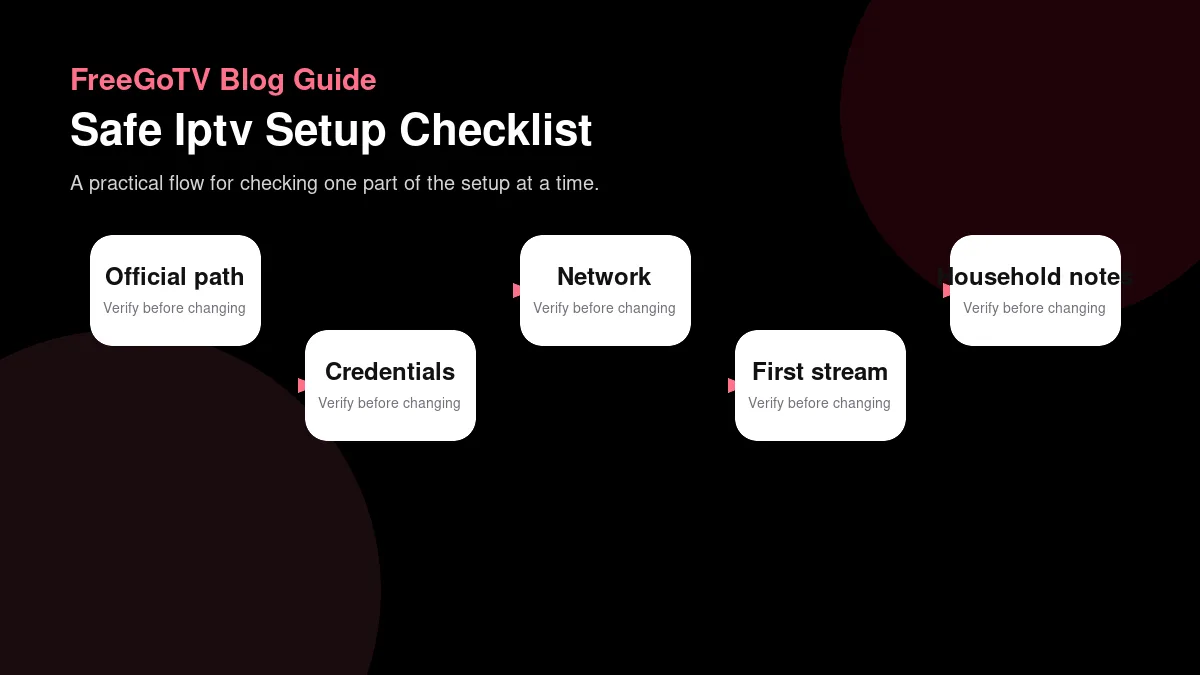
Prepare before installing anything
| Step | What to verify | Why it matters |
|---|---|---|
| Confirm the official path | Use the provider website, support route, and documented setup instructions. | It reduces the chance of installing the wrong app or following copied credentials. |
| Match the device | Check device category, operating system, app store, and display path. | A working account still needs a compatible player and practical screen setup. |
| Protect credentials | Store activation details privately and avoid sharing passwords or full account screenshots. | Setup help should not expose sensitive information unnecessarily. |
| Test one stream first | Open a normal channel or program and watch long enough to confirm stability. | A quick launch only proves startup, not household-ready playback. |
| Record the result | Note device, app, network path, and any error message. | The record makes later support or renewal conversations faster and clearer. |
Inventory the exact device
Before opening an app store or typing credentials, identify the exact playback environment. Write down the television model, streaming box model, operating-system version, connection type, and the room where the device will normally be used. This sounds basic, but it prevents the common support loop where every device is called a smart TV even though the app is running on a separate box connected by HDMI.
Confirm the account path
Make sure the device has a stable internet connection and enough free storage for updates. If the device has been unused for months, run system updates before installing a streaming player. An old operating system can block app installation, prevent secure sign-in, or create playback errors that look like account problems. Starting from a current device makes every later test cleaner.
Collect the official setup instructions in one place. That may include a welcome email, a support article, or the provider's installation page. Keep activation details private and do not paste them into public forums. A screenshot can be useful for personal reference, but redact usernames, order numbers, URLs containing tokens, and any code that grants access.
Decide who will operate the device after setup. A technically confident person may be comfortable switching inputs, updating apps, and reading small error messages. Another household member may need large text, a simple remote, and predictable navigation. A successful first stream is not only a technical event; it is a setup that the actual viewer can repeat tomorrow.
Use official app sources and documented players
Store listings are not all equal
The safest default is to install software from the device's official app store or from a clearly documented provider instruction. App names can be similar, icons can imitate legitimate products, and search results inside a store can include unrelated players. Confirm the exact app name, developer, platform, and account method before entering credentials.
Avoid side-loading unless it is explicitly required
A media player and a streaming service are not the same thing. A player may accept a playlist or portal URL, but that does not mean the player sells content or includes channels. If your instructions mention a supported third-party player, install that player only from its legitimate source and understand whether it charges a separate software fee. The deeper explanation in IPTV players and apps is useful when app descriptions are unclear.
Be especially cautious with APK files or installation packages sent through messages. Side-loading can be legitimate in some ecosystems, but it also bypasses parts of the store review and update process. If side-loading is required, the provider should supply clear instructions, a trusted download location, and an explanation of how future updates will be handled. If those details are absent, pause and ask for clarification.
When a device offers browser-based installation, check the address carefully before submitting anything. A misspelled domain or copied URL from an old support thread can route you to the wrong place. Bookmark the verified setup page only after it loads correctly, and remove old bookmarks that point to outdated instructions.
Protect credentials and household access
Keep secrets out of shared notes
Streaming credentials should be treated like access keys, not casual notes. Store them in a password manager or a private household record rather than a photo roll full of screenshots. If another person helps with setup, share only what they need and remove temporary messages afterward. This is not only about privacy; it also prevents confusion when old credentials remain in circulation after a reset.
Separate account errors from typing errors
Type access details slowly and compare character by character. Many failures come from confusing zero with the letter O, copying a trailing space, or using an expired temporary password. If an app allows pasting, paste into a harmless note first so you can see whether hidden spaces or line breaks were included. Then delete that note.
Do not reuse your email password as an app or portal password. If a service provides a separate username, keep it separate from the login used for billing or support. This boundary helps when one credential needs to be changed without disrupting unrelated accounts. It also makes support conversations clearer: you can say which credential failed without exposing other private information.
If sign-in fails repeatedly, stop after a few attempts and document the exact message. Repeated guessing can lock an account or trigger rate limits. A concise report with device model, app name, time, and error text is more helpful than sending a dozen guesses. The symptom tree in streaming error troubleshooting explains how to separate credential issues from app failures.
Run a controlled first playback test
Start with one device and one screen
The first playback test should be simple. Use one device, one network connection, one display, and one stream. Avoid testing multiple rooms at the same time because simultaneous changes make failures harder to interpret. If the stream works in the simplest setup, you have a known-good baseline before adding soundbars, mesh Wi-Fi, travel routers, or other variables.
Check audio, guide, and remote controls
Choose a stream that is appropriate for the account and instructions. Let it play for at least ten minutes without changing channels every few seconds. Quick channel hopping can hide intermittent buffering because each switch resets part of the observation. Watch for startup delay, pauses, audio sync, resolution changes, and whether the app remains responsive to the remote.
Then check practical details: volume, captions if available, program guide behavior, time zone, favorites, and how to return to the home screen. These items often determine whether the setup is usable day to day. A stream that technically plays but has unreadable guide text on the main viewer's television still needs attention before you call the setup complete.
Record the result in plain language. For example: living room Fire TV, app version, Wi-Fi, signed in successfully, one channel played for fifteen minutes, audio OK, guide time correct. If a problem appears later, this note helps you identify what changed.
Test network and device stability
Compare Wi-Fi with a nearby connection
A first stream can succeed even when the setup is fragile. Test at the time of day the household actually watches, especially if evening congestion is common. Run one longer viewing session after the basic test. Do not judge stability from a thirty-second preview during a quiet afternoon if the television will usually be used after dinner while several phones and laptops are active.
Leave room for updates and heat
If the device supports Ethernet and the router is nearby, compare wired playback with Wi-Fi. The purpose is not to prove Ethernet is always required; it is to learn whether wireless conditions are part of the problem. If wired playback is stable and Wi-Fi playback is not, repositioning the router or device may help more than changing subscriptions.
Check ventilation. Small streaming devices can become warm behind televisions or inside cabinets, especially while decoding high-bitrate video. Heat-related instability can look like random app crashes or slow remotes. Leave space around the device and avoid stacking it against other warm equipment during the first few tests.
For recurring pauses after setup, move into a structured network diagnosis instead of repeating installation. The IPTV buffering troubleshooting guide explains how to change one variable at a time so you do not lose track of the real cause.
Create a clean handoff for the household
Document the everyday path
Once the setup works, write a short handoff for the people who will use it. Include which remote to use, which app icon to open, how to find favorites, how to exit, and who to contact if an error appears. Keep it brief enough to read while standing in front of the television. A perfect technical note that nobody understands will not help on a busy evening.
Plan recovery without panic
Add a recovery order: restart the app, restart the device, check internet, then contact support with the saved setup information. This order prevents destructive steps like deleting an app or resetting a device before simpler actions have been tried. It also gives support a cleaner history if the issue persists.
Do not leave credentials taped to a television or stored in an unlocked shared note. If a family member needs access, use an agreed private storage method. If an installer or helper entered credentials on your behalf, review the setup afterward and change any temporary password according to provider instructions.
When comparing subscriptions or trial results, keep the setup note with your decision record. The evaluation guide includes a structured way to compare access, support, limits, and device behavior without relying on memory.
Avoid common first-setup mistakes
Do not mix old and new instructions
Many setup problems come from following several instruction sources at once. A video from last year, a forum comment, a reseller message, and the current provider page may describe different app versions or account methods. Choose the newest verified instruction path and follow it from start to finish before trying alternatives. If a step conflicts with the current provider guidance, pause and ask instead of improvising.
Old notes can also preserve retired portal addresses, changed app names, or credentials that were reset after a support conversation. Remove outdated screenshots from shared folders so another household member does not accidentally use them later. A clean instruction set prevents errors that look technical but are really documentation drift.
Keep payment and playback decisions separate
A setup screen may ask for playback credentials, while a pricing page or checkout flow handles subscription decisions. Keep those activities separate in your mind. Do not enter card details into an app or page unless you intentionally reached the provider payment path and verified the domain. Likewise, do not treat successful payment as proof that a particular device has been configured correctly.
If you are helping someone else, explain which step is account management and which step is television setup. This reduces anxiety and prevents accidental purchases while experimenting with apps. A calm setup protects both the viewer and the provider support team from avoidable disputes.
Confirm success after the first day
Run a second check after the device has slept, updated, or been restarted. Some apps behave differently after the first launch because cached guide data, saved credentials, and operating-system permissions settle into normal use. If playback works only immediately after installation, the setup is not truly complete.
Check whether the app remains signed in, favorites are preserved, the guide still loads, and the remote path is still obvious. Ask the everyday viewer to open the app without coaching. Their questions will reveal usability gaps that a technical installer may overlook.
Finally, save a private setup note with the app name, device model, installation date, and support route. Do not include full passwords. This small record becomes valuable months later when a device is replaced or a support agent asks what version is installed.
First-stream setup worksheet
Capture setup evidence before changing settings
Use a short worksheet before making changes or contacting support. For first-stream setup, write the device, app name, app version, network path, time of day, and the exact result you observed. Then add what you expected to happen and why. This turns a vague impression into evidence that another person can understand without standing in your living room.
For a first setup, divide the page into four boxes: account details received, app installed, device permissions granted, and first playback result. Leave sensitive credentials out of the note, but record whether the login method was a username, activation code, portal address, or another provider-approved method. That distinction matters later because an app reinstall and an account correction are different tasks.
Add a short launch path in plain language. For example, write the home-screen folder, app icon name, and the menu choice used to reach live channels or the guide. A setup can be technically correct and still frustrating if the everyday viewer cannot find it again. This is especially useful for relatives, shared televisions, or devices with several similar media apps installed.
Record the first clean playback test separately from later experiments. Note one channel or title that opened, whether audio matched video, whether the guide populated, and whether the remote could return to the same place after closing the app. Those checks confirm a repeatable setup rather than a single lucky launch after installation.
Keep setup notes private and useful
Keep the private setup record useful without turning it into a password file. Store the device model, app version, purchase or activation date, and official support route, but do not write full passwords, payment details, or complete activation URLs into a shared household note. If credentials must be saved, use a proper password manager rather than the troubleshooting worksheet.
When asking for setup help, send the smallest useful summary: device, operating system if visible, app name, activation method, and the step where the process stops. Avoid screenshots of account pages unless support specifically requests a redacted image through an official channel. A focused setup note helps support distinguish an installation problem from a subscription, network, or device-compatibility question.
After the first stream works, update the note with the final working state rather than keeping every failed attempt. Mark the correct app, the active device, and the support path that actually helped. Future troubleshooting becomes safer when the household can identify the known-good baseline before changing settings, reinstalling software, or trying a different screen.
Finally, connect this worksheet to the rest of your streaming decision. A successful first stream should lead to a repeatable household process, not a one-time lucky launch. If you need broader context, use the installation page, FAQ, and related troubleshooting guides. The best streaming setup is not the one with the most undocumented tweaks; it is the one whose requirements, limits, and recovery steps are understood by the people who use it.
If the first setup is happening after a subscription renewal, confirm the account status before changing app settings. The FreeGoTV renewal payment guide explains what to verify with support so setup troubleshooting does not get mixed with a payment or plan question.
FAQ
Can I use any IPTV app?
Can I use any IPTV app? No. A generic player may not support your account method, playlist format, or provider instructions. Confirm the documented app or supported player before entering credentials. If the public documentation is broad, ask for the exact supported combination of app, device, and access method.
Should I reset my device if setup fails?
Should I reset my device if setup fails? Usually not as a first step. Resetting can remove unrelated apps, erase preferences, and create more work without solving the original problem. Start with app restart, device restart, network check, credential check, and documented reinstall steps. Save factory reset for cases where the device itself is corrupted or support specifically recommends it.
What should I send support?
What should I send support? Send the device model, app name and version, connection type, approximate time, the exact error message, and the troubleshooting steps already attempted. Do not send full passwords, payment details, or public screenshots of activation URLs. Useful support evidence is specific, but it does not need to expose secrets.
Conclusion: finish with a stable first stream
A setup is complete when it is repeatable
A safe IPTV setup is not measured by how quickly the first picture appears. It is measured by whether the correct app was installed from a trusted source, credentials were handled carefully, playback was tested under realistic conditions, and the household knows how to recover from ordinary errors. That process creates confidence without pretending every service, app, or device behaves the same way.
Your next step is to compare your device inventory with the installation guidance, then run the first playback test with one screen before adding more complexity. Keep FreeGoTV bookmarked for verified site navigation and use the related guides when you need to diagnose a specific layer.