Buffering is frustrating because it interrupts something that already appeared to work. The app opened, the channel loaded, and then the picture paused or cycled through short bursts of playback. That pattern can come from Wi-Fi interference, overloaded equipment, inconsistent upstream delivery, app behavior, or household traffic that changes minute by minute.
The productive response is controlled testing. This guide gives you a step-by-step IPTV buffering troubleshooting process for US households without pretending a single speed-test number explains everything. It describes general network diagnosis, not a live FreeGoTV outage check or a guarantee about any specific stream. For brand navigation and current public pages, start with FreeGoTV.
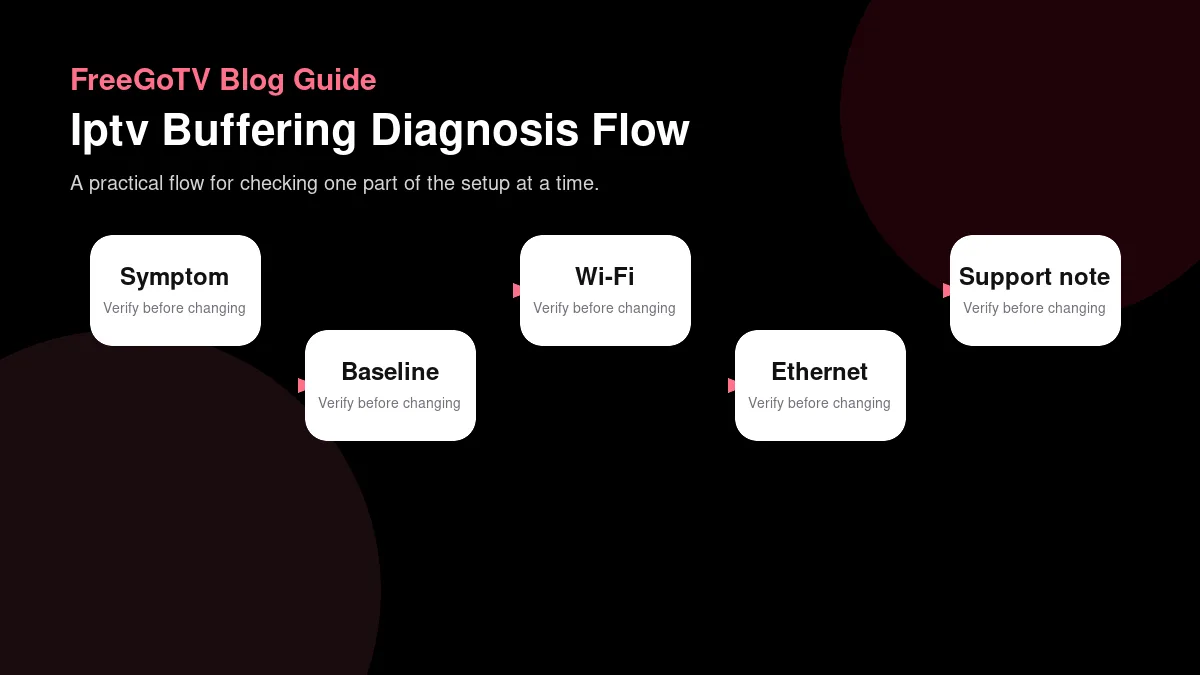
Define the buffering symptom before changing settings
| Symptom | Likely area to investigate | Test | Next action |
|---|---|---|---|
| Pauses only on Wi-Fi | Wireless signal, interference, or router placement. | Move closer to the router or compare with a wired connection. | Improve Wi-Fi placement or keep the main device on Ethernet if available. |
| Pauses on every device | Internet connection, household load, or upstream delivery. | Test during a quiet household period and compare another app or stream type. | Record timing and contact support if the pattern persists. |
| Starts fine then degrades | Buffer exhaustion, heat, app memory, or changing bitrate. | Restart the app, test a shorter session, and check device ventilation. | Update the app/device and document when degradation begins. |
| Only one channel buffers | Channel source, guide mapping, or stream-specific issue. | Compare nearby channels and note exact channel name and time. | Send a precise support report instead of changing home network settings. |
| Speed test looks good but stream pauses | Speed test path may not match streaming path or Wi-Fi may fluctuate. | Compare Ethernet, Wi-Fi, time of day, and household usage. | Use the controlled comparison as evidence rather than relying on one number. |
Write what you see
Begin with the exact symptom. Does the video pause after ten seconds, every few minutes, only during popular events, only on one channel, or only on one device? Does audio continue while video freezes? Does the app show an error code, return to the menu, or keep spinning indefinitely? These details point to different layers of the system.
Separate startup delay from midstream stalls
Startup delay is not always the same problem as buffering after playback begins. Some apps intentionally wait while they build a reserve before starting live video. Midstream stalls suggest that the reserve is being depleted during viewing. A black screen with no spinner may indicate a decoding, app, or rights issue rather than ordinary network variation.
Write down the time of day and what else was using the internet. Evening streaming, cloud backups, game downloads, video calls, and security-camera uploads can all change available capacity. A problem that appears only when the household is busy requires a different fix from a problem that occurs at 7 a.m. on a quiet network.
Avoid changing five settings immediately. If you lower resolution, reboot the router, reinstall the app, and move the device all at once, you may get temporary improvement without learning what mattered. One-variable testing is slower for ten minutes but much faster than chasing the same symptom for a week.
Establish a baseline with simple measurements
Speed is not the same as consistency
Run a basic speed test near the streaming device, but treat it as one clue. A high download result shows that your connection can move data quickly for that test. It does not prove that every video request will arrive consistently, that Wi-Fi latency is stable, or that the streaming source is healthy. Still, a very low result near the device is worth addressing.
Test near the playback device
Measure from the same network path the device uses. Testing from a phone beside the router does not describe a television in a back room behind two walls. If the streaming device has a browser or built-in network test, use it. Otherwise, test with a phone placed next to the device and connected to the same Wi-Fi band.
Look for upload activity too. Many households focus only on download speed, but cloud cameras, backups, and video calls can create contention that affects acknowledgments, router queues, and overall responsiveness. If buffering appears while someone is uploading large files, pause that upload as a temporary experiment.
Document the baseline: device, connection type, speed result, signal strength if available, time, and symptom. This makes the next test meaningful. If the symptom changes after a single adjustment, you will know which adjustment deserves further attention.
Test Wi-Fi conditions carefully
Distance, walls, and bands matter
Wi-Fi is often the weakest part of a streaming setup because it shares airspace with neighboring networks, appliances, walls, and competing household devices. A phone may show full bars while actual throughput fluctuates. Signal icons are simplified indicators; they do not show interference, retries, or congestion across time.
Mesh systems can hide weak links
Try moving the streaming device, not only the router. A small HDMI stick placed directly behind a television can sit in a poor radio location. An HDMI extender, a different port, or a device position with clearer air can improve stability. Keep the device ventilated while testing so heat does not become a second variable.
If your router separates 2.4 GHz and 5 GHz networks, compare them. The 2.4 GHz band may reach farther but often faces more interference. The 5 GHz band may be faster but less tolerant of walls. There is no universal winner in every home. The best band is the one that remains stable where the television actually sits.
Mesh systems can complicate diagnosis because the device may connect to a nearby node while that node has a weak connection back to the main router. If possible, check the mesh app for backhaul quality and connected-node information. Moving a node a few feet can matter more than upgrading the streaming app.
Compare with wired Ethernet when possible
Use Ethernet as a test, not a verdict
A wired comparison is one of the clearest experiments. If the device or an adapter supports Ethernet, connect it directly to the router or a reliable switch and test the same stream at the same time of day. If buffering disappears on Ethernet, Wi-Fi deserves attention. If buffering continues, the cause may be elsewhere.
Temporary cables are useful
You do not need to permanently route a cable through the room to learn from this test. A temporary cable across the floor for twenty minutes can answer an important question. Test safely, avoid trip hazards, and remove it afterward. The result can justify a cleaner permanent cable, a better device location, or a router adjustment.
If the device lacks Ethernet, test another device that does support it using the same service instructions if permitted. Be careful not to violate account or connection limits. The goal is to compare network paths, not to add unauthorized screens. The streaming device compatibility guide can help identify which hardware details matter before buying adapters.
Wired success does not prove the provider is perfect, and wired failure does not prove the provider is at fault. It simply removes a large variable from the path. Use it as a controlled comparison, then continue narrowing the problem.
Reduce household contention during the test
Pause heavy traffic
Streaming competes with other internet use. Pause game downloads, cloud backups, large operating-system updates, and unnecessary video calls during one controlled test. Then replay the same viewing scenario. If buffering improves, the household may need scheduling, quality controls, router QoS features, or a faster plan depending on the pattern.
Account for simultaneous screens
Multiple screens matter because each active stream consumes its own bandwidth and device resources. A plan that works for one television may struggle when several rooms stream at once, especially if the internet connection is shared with work, gaming, and uploads. The arithmetic in streaming data usage helps translate bitrates and hours into realistic household demand.
Router age can also matter. Older routers may have enough headline speed for one test but struggle with many connected devices, poor firmware, or weak Wi-Fi radios. Restarting the router can temporarily clear problems, but repeated restarts are a clue to investigate firmware updates, placement, or replacement. Do not confuse a restart workaround with a permanent diagnosis.
If your internet provider supplies usage or performance history, review it after a problematic evening. Look for outages, high usage, or data-cap throttling notices. Provider account pages are not perfect, but they can confirm whether the access connection was unhealthy while the stream was failing.
Check the app and source layer
Update without wiping evidence
Not every buffering symptom is caused by your home network. An app bug, expired cache, unsupported media format, or source-side problem can create pauses too. Check for app updates and device updates, but note the old version first if support may ask. Updating is reasonable; deleting data immediately can erase useful evidence and saved configuration.
Compare channels and content types
Compare one channel or program with another if your account allows it. If every stream pauses in the same way, the network, app, or device is more likely. If only one channel fails while other content remains stable, the issue may be with that specific source, mapping, or schedule. The electronic program guide explained article discusses how guide data and video availability can fail separately.
Clear cache only when the app documentation or support flow recommends it, and understand the difference between clearing cache and clearing data. Cache usually removes temporary files. Data may remove sign-in details and settings. On some platforms the wording differs, so read the confirmation dialog before selecting it.
If the app provides player options, change one documented setting at a time and record the original value. Randomly switching decoders, buffer sizes, and output formats can make the setup less stable. A reversible setting change is useful; an undocumented experiment with no record is not.
Inspect router and ISP signals
Router logs and app dashboards can add context
Many modern routers show connected devices, signal strength, band, data use, and sometimes connection quality. These dashboards are not perfect diagnostic instruments, but they can reveal obvious issues: the streaming device is connected to a distant mesh node, the signal is weak, the router recently rebooted, or another device is consuming heavy bandwidth. Capture those clues before changing settings.
If the internet provider reports outages or maintenance in your area, include that information in your timeline. A household can waste hours adjusting Wi-Fi while the access connection is unstable upstream. Provider status pages and account notifications are not always complete, but they are worth checking when symptoms affect multiple devices.
Latency and packet loss can matter more than headline speed
Streaming needs enough throughput, but responsiveness and loss also matter. A connection can show a strong average download number while suffering short interruptions. Video buffers hide some interruptions; once interruptions exceed the reserve, playback pauses. If video calls, online games, and streams all suffer at the same time, the issue may be broader than one app.
Do not chase exotic fixes before checking ordinary router health: firmware updates, power supply stability, ventilation, cable condition, and placement. A router buried behind metal equipment or running old firmware can create intermittent trouble that looks like a service problem.
Decide when to contact support
Contact support when controlled tests point beyond your home setup, when one account feature fails across devices, when the same channel fails while others work, or when an error message identifies authorization or source access. Include your test results so support does not ask you to repeat the basics.
A useful escalation says what worked as well as what failed. For example: Ethernet and Wi-Fi both buffer on one specific channel, other channels play for thirty minutes, app version is current, issue occurred at 9:10 p.m. Eastern. That statement is much easier to investigate than a general complaint that everything buffers.
If the provider asks for a video or screenshot, redact private data and capture only the symptom. Do not send credentials, payment information, or full account pages. Strong evidence and privacy can coexist.
Buffering test notes to keep
Record the playback pattern before changing equipment
Use a short worksheet before making changes or contacting support. For buffering diagnosis, write the device, app name, app version, network path, time of day, and the exact result you observed. Then add what you expected to happen and why. This turns a vague impression into evidence that another person can understand without standing in your living room.
For buffering, the worksheet should read like a controlled network test, not a general complaint. Create columns for Wi-Fi band, Ethernet if available, router location, other household activity, and whether the pause happened during startup or after steady playback. A pause five seconds after launch can point to a different cause than stalling after twenty minutes of live viewing.
Run comparisons in pairs. Test the same stream on Wi-Fi and then on Ethernet, or test the same room at a quiet hour and a busy hour. Keep the content, device, and app constant when possible so the changed variable is obvious. If everything changes at once, the worksheet cannot tell whether the improvement came from signal strength, congestion, device load, or source behavior.
Describe the buffering symptom with timing. Write whether the video spins forever, plays in short bursts, drops to a lower resolution, loses audio, or freezes while the clock continues. Those details are more useful than a single speed-test number because they show how the player responds under load. They also help separate bandwidth limits from unstable packet delivery or app recovery behavior.
Share only the details support needs
When saving test data, include network facts without exposing private access. Router model, connection type, approximate distance from the access point, app version, and local time are usually safe. Do not share the Wi-Fi password, router admin screen, public IP address, or account tokens. If a screenshot shows network identifiers, crop or redact it before sending.
For escalation, lead with the most controlled comparison you performed. A strong report might say that wired playback paused on one channel while two other channels ran normally, or that all streams stalled only when another device was downloading. That kind of contrast gives support a useful direction without asking them to infer the home network from scattered observations.
After the buffering improves, keep the baseline that worked: connection path, router placement, app version, and any quality setting you changed. Remove temporary experiments that did not matter. The next time playback stutters, you can compare against the stable baseline first instead of repeating every reset, reinstall, or cable swap from memory.
Finally, connect this worksheet to the rest of your streaming decision. Buffering notes should show whether the issue follows the device, the network path, the time of day, or a specific stream. If you need broader context, use the data-usage guide and the streaming-error troubleshooting article. The best streaming setup is not the one with the most undocumented tweaks; it is the one whose requirements, limits, and recovery steps are understood by the people who use it.
Compare short tests with real viewing sessions
A five-minute test can miss problems that appear only after a device warms up, an app cache fills, or a household starts using more bandwidth. Run one short startup check and one normal-length viewing check. If the short test passes but the longer session fails, record the time when pauses begin, the channel category, and whether the device feels unusually warm. That pattern points somewhere different from a stream that fails immediately.
Also separate repeatable problems from random ones. A repeatable pause every evening around the same time can indicate household contention or ISP congestion. A single pause during a live event may be harder to diagnose without more examples. The most useful support note explains frequency, timing, device, network path, and whether Ethernet changes the result.
FAQ
How much speed do I need?
How much speed do I need? It depends on bitrate, number of screens, household traffic, and consistency. A service may work at modest speeds if delivery is stable, while a higher-speed plan can still buffer over poor Wi-Fi. Measure at the playback location and test during normal viewing hours rather than relying only on the plan advertised by your internet provider.
Should I buy a new router first?
Should I buy a new router first? Not automatically. First compare Wi-Fi placement, wired playback, app updates, and household load. A new router can help when the existing one is old, overloaded, or poorly located, but buying hardware before diagnosis can mask simpler fixes. Spend money after a test points clearly to the network equipment.
Why does buffering happen only at night?
Why does buffering happen only at night? Evening can combine neighborhood congestion, household streaming, cloud backups, and busier provider infrastructure. Time-specific symptoms are real clues. Record the hour, connected devices, and affected streams for several nights so you can separate random failures from a repeatable pattern.
Conclusion: isolate the weak link before replacing hardware
Escalate with evidence
Buffering troubleshooting works best when you move from observation to controlled comparison. Define the symptom, measure near the device, compare Wi-Fi with wired playback, reduce household contention, and then inspect app or source-specific behavior. Each step narrows the possible cause without requiring guesswork.
Your next step is to run one clean test and write down the result. If the issue remains, contact support with the device, app version, connection type, time, exact symptom, and steps attempted. Keep FreeGoTV as the verified brand route and use the FAQ for general support boundaries.