Many viewers hear the phrase IPTV app and assume one piece of software provides everything: channels, account, player, guide, recording, support, and billing. In practice, those responsibilities can be split across several parties. A player may only decode and organize media, while the service supplies access and instructions.
Understanding this boundary prevents unsafe downloads and disappointed purchases. This guide explains what IPTV players and apps usually do, what they do not provide by themselves, and how to evaluate permissions, playlists, formats, and updates. It describes general software concepts and does not invent an official FreeGoTV app. For brand-level context, visit FreeGoTV or the installation page.
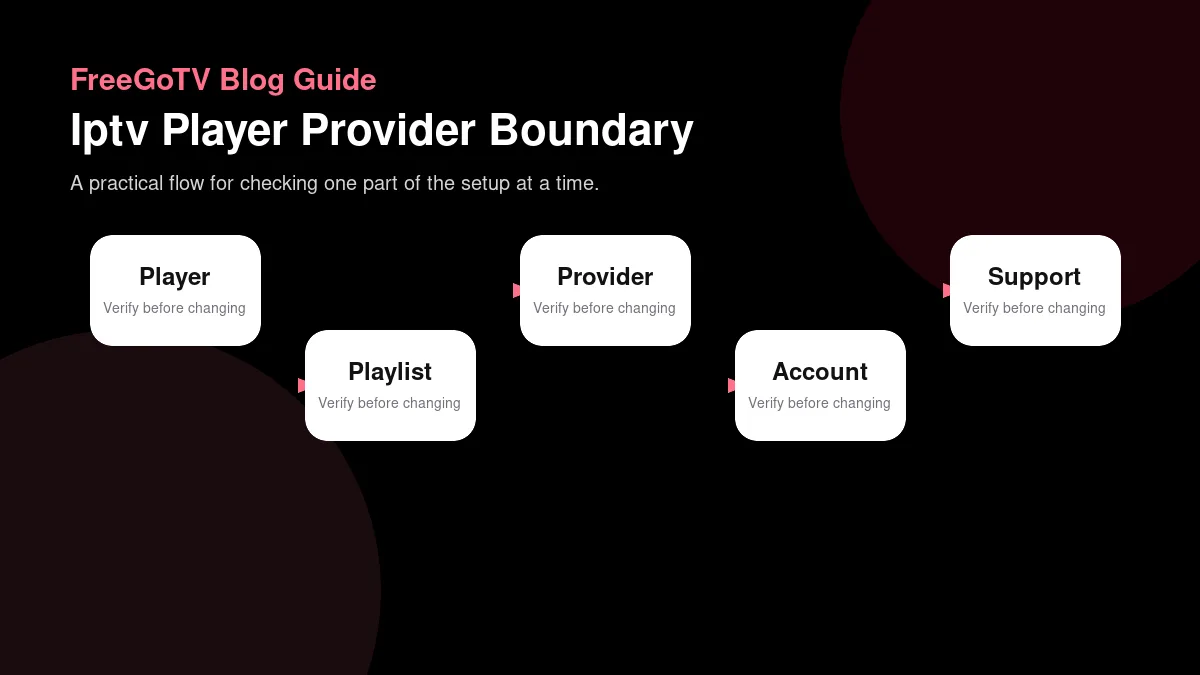
Separate the player from the service
| Layer | What it does | What it does not provide by itself |
|---|---|---|
| IPTV player app | Opens supported playlist or account inputs, decodes streams, and displays playback controls. | It does not automatically include channels, billing, support, or legal authorization. |
| Playlist or portal details | Tell the player where to request streams and guide data. | They do not guarantee device compatibility, account status, or content availability. |
| Streaming provider/service | Manages subscription access, support path, plan terms, and service-specific guidance. | It may not control every third-party player interface or device limitation. |
| App store listing | Shows that software may be installable on a platform. | It does not prove a specific provider account, playlist, or feature will work. |
| Viewer setup | Combines device, app, credentials, network, and display settings. | It should not rely on guessed settings or credentials from unofficial sources. |
A player is a container
A media player is software that presents video, audio, playlists, guide data, and controls. It may support many account methods and formats. That flexibility does not mean the player owns or sells the content shown through it. A player can be like a web browser: capable of displaying material from many sources without being responsible for every source.
A provider controls access
A streaming service or provider supplies access terms, account credentials, content rights, support scope, and sometimes a recommended app. In some setups the provider also operates its own branded application. In others it tells customers to use a compatible third-party player. The distinction matters because buying or installing the player may not include a subscription.
When you read an app listing, look for wording such as 'bring your own playlist' or 'does not include content.' That language means the app expects a separate source. If a viewer pays for the app alone and expects channels to appear automatically, the misunderstanding began before installation.
Ask three questions before paying: What exactly am I buying, who supports it, and what content rights or access are included? Clear answers reduce the chance of blaming the wrong company when something fails.
Understand playlists and formats
M3U is a list, not a guarantee
The term playlist can refer to a list of channels or media items. M3U is a common plain-text playlist format that can contain names, groups, and stream URLs. A playlist describes where a player should request media; it does not prove that the listed streams are authorized, stable, current, or compatible with every device.
Containers and codecs are different
Some systems use portals, APIs, or account-based login rather than a simple file. Others combine playlist entries with separate guide data. A player may support one method but not another. Before installing, confirm the access method your service documents. Guessing can lead to an app that looks polished but cannot use your account.
A container is different from a codec. A container or stream format organizes media; a codec describes how video or audio is compressed. A device may accept one container while struggling with a particular codec or audio track. This is why a stream can open on one device and fail on another even when both devices run the same app name.
For picture-related tradeoffs, the streaming video quality guide explains resolution, bitrate, HDR, and codecs in more depth. App choice and media format interact, but neither one alone guarantees a high-quality result.
Evaluate app permissions and privacy
Use the least surprising permissions
Streaming apps often need network access, storage for cache, and sometimes local network discovery or media-library permissions. They should not need unrelated access without a clear reason. If an app asks for contacts, SMS, or broad file access, pause and research whether the permission is documented by the developer and required for the feature you plan to use.
Keep credentials private
Review the developer name and update history in the official store. A long-abandoned app may still install but fail with modern operating systems or secure streaming requirements. A newly listed app with little information may deserve additional caution. Popularity alone is not proof of safety, but documentation and maintenance signals matter.
Do not paste credentials into an app until you are confident it is the intended software. Similar app names can capture mistakes. If possible, follow the provider's exact link from a verified page or written instruction. The safe setup checklist gives a practical sequence for confirming identity before login.
If an app syncs settings through its own account, understand what is being stored. Favorites, guide preferences, and device lists can be useful, but they also create another account to protect. Use unique passwords and remove old devices when a household setup changes.
Compare platform differences before choosing
Native apps differ by ecosystem
The same player brand can behave differently across Android TV, Google TV, Fire TV, Apple TV, iOS, Android mobile, and smart-TV operating systems. Features may arrive later on one platform, be missing entirely, or depend on operating-system APIs. Do not assume a screenshot from one platform proves the same controls exist on another.
Casting is not the same as native playback
Native playback usually means the app runs directly on the device connected to the television. Casting means another device, such as a phone, sends or controls playback. Casting can be convenient, but it adds dependency on the phone, local network, and receiving device. For a primary living-room setup, many households prefer a native app because it keeps the remote and screen workflow simpler.
Roku, Apple TV, Fire TV, Google TV, and smart-TV platforms each have their own app-store rules and media capabilities. The issue is not which brand is universally best; it is which documented combination supports your service and household needs. The device compatibility guide provides a worksheet for that decision.
Accessibility also differs. Captions, screen-reader behavior, high-contrast controls, and remote shortcuts may vary by platform. If accessibility is a requirement, test it during the trial rather than assuming it will match another app in the same ecosystem.
Updates, support, and lifecycle
Know who fixes what
When something breaks, responsibility depends on the layer. The app developer may fix a player crash. The service provider may correct account access or playlist data. The device manufacturer may patch operating-system bugs. Your internet provider may address access-network issues. A clear setup record helps route the problem to the right place.
Old devices eventually age out
Check how updates are delivered. Store-installed apps usually update through the platform store. Side-loaded apps may require manual updates, which can be easy to forget. Outdated software can create security risk and compatibility problems. If a setup depends on manual updates, include that task in the household handoff.
Devices age. An app that works today may later require an operating-system version that an old device cannot install. Codecs and DRM requirements can also change. Buying the cheapest possible hardware can be reasonable for a secondary room, but a primary setup benefits from enough support runway to receive updates for several years.
Before replacing hardware, confirm the actual failure. If every app on the device is slow and the operating system is unsupported, replacement may be sensible. If only one playlist entry fails, a new box may not help at all.
A practical app selection workflow
Start from documentation
Start with the provider's documented access method. Identify whether it calls for a native app, a supported third-party player, a playlist, a portal, or another login type. Then compare that requirement with the exact device you plan to use. Do not begin with random app-store searches and hope the account fits later.
Test before optimizing
Install one candidate and complete a basic test: sign in, load a stream, check guide behavior, verify audio, test captions if needed, and exit cleanly. If it works, resist the urge to install five alternatives on the same evening. Multiple overlapping apps can confuse household members and scatter credentials.
If the first app fails, record why before trying another. Was the app unavailable, login unsupported, stream blank, audio missing, guide empty, or remote navigation poor? A failure reason is a decision asset. It tells you whether a different player may help or whether the underlying service, device, or network needs attention.
After choosing, remove unused apps that contain credentials or old lists. A clean device is easier to support and safer to hand to another household member. Keep the verified app name in your setup note.
Watch for confusing app-store language
Marketing words can hide the role of the app
App listings often use broad phrases such as player, IPTV, live TV, channels, portal, playlist, or media center. Those words do not all mean the same thing. Read the description for explicit statements about whether content is included. If the listing says users must provide their own content, the app is not a subscription by itself.
Screenshots can also mislead when they use sample channels or generic interface artwork. A screenshot proves the app can display a guide-like layout; it does not prove the displayed channels come with installation. Treat screenshots as interface examples unless the developer clearly explains the source and rights for the content shown.
Ratings do not answer compatibility questions
A highly rated app can still be wrong for your service if it lacks the required login method. A poorly rated app may be the only documented option for a specific provider, though that should prompt careful testing. Store ratings summarize many users with different needs, devices, and content sources. Your compatibility question remains specific.
Read recent reviews for patterns, but do not rely on them as your only evidence. Look for mentions of your platform, operating-system version, and access method. A review from a phone user may not describe television behavior.
Keep apps maintainable over time
After selecting a player, turn on normal updates unless the provider documents a reason to wait. Security fixes and compatibility updates matter. If an update changes behavior, record the version and symptom instead of disabling updates permanently without a plan.
Maintain a small app footprint. Several abandoned players with stored playlists create confusion and privacy risk. Remove apps you no longer use, especially after testing. Keep the chosen app, setup note, and support route clear for the household.
When replacing a device, do not assume the old app setup will transfer perfectly. Reconfirm store availability, login method, and codec support on the new hardware. Migration is a new compatibility check, not merely a copy operation.
Player selection worksheet
Record the player and provider boundary
Use a short worksheet before making changes or contacting support. For app selection, write the device, app name, app version, network path, time of day, and the exact result you observed. Then add what you expected to happen and why. This turns a vague impression into evidence that another person can understand without standing in your living room.
For app selection, the worksheet should identify the software role first. Mark whether the app is only a media player, a provider-branded app, a store subscription, or a companion tool. That single label prevents a common mistake: judging a player as though it supplied content, or judging a service as though every third-party player feature belonged to it.
Compare apps by tasks, not by screenshots. Note how each one handles sign-in, playlist import if relevant, guide loading, favorites, subtitles, audio tracks, parental controls, and remote navigation. An app with a polished grid may still be wrong for a household if the documented access method, accessibility behavior, or update history does not fit the service.
When testing a setting, write down the starting value before changing it. Player menus can include decoder modes, buffer sizes, aspect-ratio controls, hardware acceleration, and time-shift options, and their names vary by app. Without the original value, a failed experiment can leave the app worse than before and make later support harder.
Protect playlist and account details
Treat app configuration as sensitive. A playlist URL, portal address, token, or QR code may grant access even if it does not look like a password. In the worksheet, describe the credential type without copying the full secret. Keep screenshots focused on menus or error text, and crop any field that shows account-specific values.
If you ask whether a player is appropriate, send the app name, version, device model, installation source, and the documented access method you are trying to use. Leave out opinions about the interface until compatibility is established. Support can answer a precise configuration question much faster than a broad request to recommend the best app.
After choosing an app, keep a clean configuration summary: app name, install source, version, update preference, required permissions, and any settings intentionally changed. Remove notes about rejected players unless they explain a real constraint. A concise app record is easier to maintain when the device is replaced or the app store listing changes.
Finally, connect this worksheet to the rest of your streaming decision. App notes should show whether the software is a player, a provider app, or a separate paid tool, and whether it supports the documented access method. If you need broader context, use the setup checklist and device compatibility guide. The best streaming setup is not the one with the most undocumented tweaks; it is the one whose requirements, limits, and recovery steps are understood by the people who use it.
Confirm the app boundary before choosing a player
For app selection, keep a final comparison table with these columns: app name, developer, platform, access method, content-included statement, permissions, update recency, guide support, and household usability. Fill it from store listings and provider documentation, not from assumptions. The table quickly reveals whether two apps are actually alternatives or simply share similar marketing words. It also prevents paying for a player twice because one person forgot which app already worked. If you later contact support, the table shows that you installed the intended software and can identify the exact version. That clarity matters when app stores contain look-alike names, old forks, or unrelated players.
Test the player without blaming the provider first
When playback fails inside a player, the provider is not always the first layer to blame. The app may have outdated permissions, unsupported decoder settings, a bad cache, or a playlist field entered incorrectly. Run a controlled check: confirm the app version, re-check the account input exactly as provided, test one known working stream or category, and compare another device if available. If the same account behaves differently across players, the app layer deserves attention.
At the same time, do not expect a player developer to solve account billing, channel availability, renewal status, or service-side guide data. A support request should identify the player and the provider separately. That wording helps everyone avoid circular answers where the app store points to the provider and the provider receives no usable detail about the app environment.
FAQ
Does buying a player include channels?
Does buying a player include channels? Usually no, unless the app explicitly sells an authorized service. Many players are empty containers that require separate access. Read the listing and provider instructions before assuming content is included.
Is a free player always worse than a paid one?
Is a free player always worse than a paid one? No. Price does not automatically determine compatibility, privacy, support, or usability. Evaluate documentation, platform support, permissions, updates, and whether the app handles your required access method.
Can one playlist work everywhere?
Can one playlist work everywhere? Not necessarily. The list may use formats, codecs, authentication, or guide data that some apps and devices handle differently. Test on the actual device and account combination rather than assuming portability.
Conclusion: choose software with clear responsibilities
Choose software by role
IPTV players and apps are easiest to evaluate when you assign each part a role. The player organizes and decodes media. The service supplies access and terms. The device provides operating-system and hardware support. The network delivers requests. Confusing those roles leads to poor purchases and poor troubleshooting.
Your next step is to identify the documented access method for your service, then compare one app against your exact device and household requirements. Keep FreeGoTV as the trusted brand link, use installation guidance for public setup context, and test carefully before adding extra apps.