A streaming error can look like a single problem from the couch: nothing plays. Under the surface, sign-in, app startup, network requests, media decoding, audio output, captions, guide data, and account access can each fail in different ways. Good troubleshooting begins by naming the symptom precisely.
This guide helps you diagnose sign-in errors, black screens, app crashes, missing audio, and playback failures without exposing private credentials or making unsupported assumptions about a provider. It complements the public FAQ, installation guide, and FreeGoTV homepage, but it is general technical guidance rather than a live status page.
Capture the symptom before fixing it
| Symptom | Possible cause | First test | Next step |
|---|---|---|---|
| Cannot sign in | Expired access, typo, wrong app, or account issue. | Re-enter credentials carefully and confirm renewal/account status through official support. | Send the exact message and device/app details if sign-in still fails. |
| Black screen with audio | Video decoding, HDMI/display mode, or app rendering problem. | Try another channel and check display/HDR settings without changing account details. | Report whether audio, guide, and controls still appear. |
| No audio | Muted output, wrong audio track, receiver setting, or app issue. | Check device volume, TV/receiver input, and alternate audio track if available. | Compare another app or channel before reinstalling. |
| App crashes | App version, device storage, cache, or operating-system issue. | Restart the app/device and check available updates. | Record app version and crash timing for support. |
| Playback error code | Network request, account, stream, or format issue. | Write down the exact code and test one known-good channel. | Share the code, time, device, app, and whether other channels work. |
Exact messages matter
Write down the first visible symptom. Does the app fail to open, reject credentials, show a black screen, display a spinner, crash to the home screen, or play video without sound? If there is an error code, copy it exactly. A code that looks meaningless to a viewer may identify a login, network, decoding, or authorization path.
Reproduce once, not endlessly
Note what changed recently. Updates, router replacements, password resets, device storage warnings, new sound equipment, travel, and expired trials can all explain sudden failures. If nothing changed, record that too. A no-change report helps distinguish local setup changes from wider issues.
Try to reproduce the issue once after restarting the app. Do not repeat failed sign-in attempts indefinitely or reinstall everything immediately. Repetition can lock accounts, erase evidence, or turn one problem into several. The goal is to confirm the symptom, not to exhaust every option before asking for help.
Take screenshots only when they do not expose secrets. Error text is useful. Full activation URLs, usernames, payment details, and passwords are not. Crop or redact before sharing outside your household.
Sign-in and account errors
Check typing and account state
Sign-in errors often come from small details: wrong app, expired trial, mistyped username, copied space, wrong portal, or account status. Compare the app name and access method against official instructions before assuming the password is wrong. A valid credential entered into the wrong player can still fail.
Credentials are not all the same
Distinguish service credentials from billing or email credentials. Some setups use a separate username or portal for playback. Others use email login. Do not reuse or expose unrelated passwords while testing. If a provider sends temporary credentials, follow the instructions for changing or storing them securely.
If the app says unauthorized, expired, or invalid account, record the exact language and contact support through the documented path. If the app says network error during login, test internet access and time settings. Secure login can fail when a device clock is wildly wrong because certificates and tokens depend on time.
For a fresh setup, use the safe IPTV setup checklist to confirm the app source and credential handling before repeated login attempts.
Black screen and no video
Separate blank video from app freeze
A black screen can mean several things. The app may be frozen, the stream may have no video, the device may fail to decode the format, or the television may reject the output mode. Test whether the app menus still respond. If menus work but video is blank, the issue is likely closer to playback or content than to the entire app.
Try a simple output path
Try one known-good stream or another channel if your account permits it. If only one entry is black, document that entry. If every entry is black, restart the app and device, then check for updates. Avoid changing advanced player settings until you know whether the failure is global or limited.
Simplify the display path. If the device runs through a receiver, soundbar, splitter, or capture device, connect it directly to the television for a test. HDMI negotiation, HDCP behavior, or unsupported output formats can produce blank screens even while the app itself functions. Restore the original path after testing so the comparison is clear.
If video appears on one device but not another, compare codec support, app version, and display settings. The streaming video quality guide explains how decoding and output capabilities can affect playback.
Audio, captions, and language errors
Audio can fail after video succeeds
Missing audio is not the same as a broken stream. The video may decode while the audio track uses a format or output path your equipment does not accept. Check the app's audio-track menu, the device audio settings, and the television or receiver input mode. Try stereo output as a diagnostic step if surround settings fail.
Captions depend on source and player
Audio delay can arise from Bluetooth speakers, soundbars, television processing, or app buffering. Compare the television speakers with external audio equipment. If the delay disappears on TV speakers, the external path deserves attention. If delay remains across outputs, the stream or app timing may be involved.
Captions depend on whether caption data exists, whether the player supports that format, and whether captions are enabled at both the app and device level. A missing caption option on one program does not prove captions are unavailable everywhere. Test several programs that should contain captions before drawing conclusions.
Language mismatches can be caused by selected audio track, app defaults, device language, or channel feed. Record the selected track and the expected language when reporting the problem.
App crashes and freezes
Storage and updates matter
Crashes point toward app, operating-system, memory, storage, or device-health issues. Check whether other apps also crash. If the whole device is unstable, focus on updates, storage, heat, and restart behavior. If only one app crashes, update that app and document the version.
Clear cache carefully
Low storage can create strange failures. Streaming apps cache data, guides, images, and temporary media. A device with almost no free space may crash or fail updates. Remove unused apps and restart before retesting. Do not remove the streaming app first if you still need its version number or settings for support.
Clearing cache can help when temporary data is corrupted. Clearing data is more disruptive because it may remove sign-in details and preferences. Read the platform wording before selecting either option. If you clear data, make sure you still have the official setup instructions and credentials stored safely.
Heat can also cause instability. Devices tucked behind televisions or inside cabinets may throttle or crash. Move the device to a ventilated position during a test and observe whether behavior improves.
Prepare a support report that protects privacy
Useful reports are short and specific
A good support report includes the device model, app name, app version, connection type, time of issue, exact error text, affected channel or feature, and steps already tried. Keep it concise. Support teams do not need a long story before they have the basic facts.
Do not send secrets
Do not send passwords, full payment details, private URLs, or screenshots that reveal activation tokens. If support needs to verify an account, use the provider's official process. Public comments and social messages are especially poor places to share private identifiers.
Mention whether the issue affects one device or several. A problem on every device may point to account, provider, or network issues. A problem on one device may point to app version, storage, output path, or local configuration. This comparison is often the fastest way to narrow the layer.
If buffering is the main symptom after playback starts, use the buffering troubleshooting guide to add network evidence before escalating. If guide data is wrong, use the EPG workflow instead of treating it as a playback error.
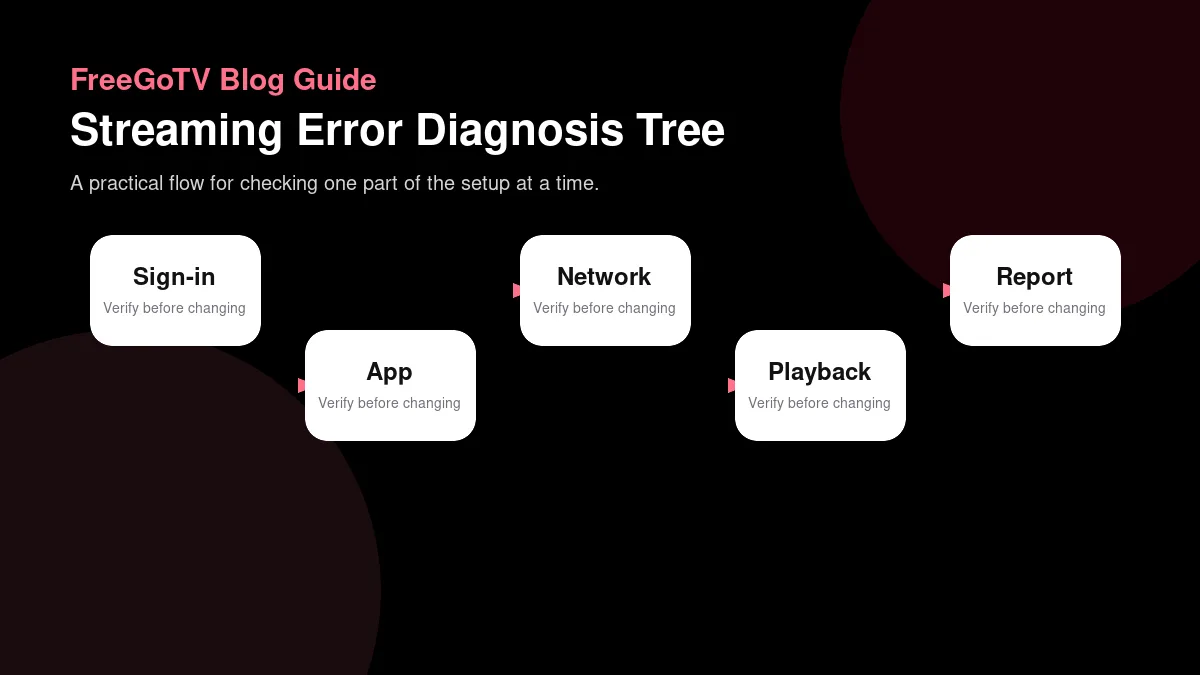
Use a symptom tree instead of guessing
Start where the failure appears
If the app will not open, begin with device storage, updates, restart behavior, and app installation. If the app opens but sign-in fails, begin with credentials, account status, app identity, and time settings. If sign-in works but playback fails, begin with stream selection, network path, decoding, and output. Matching the first failed step to the first diagnostic step saves time.
A symptom tree also prevents destructive fixes. There is little reason to factory reset a device for a single wrong guide entry. There is little reason to change router settings because one password was typed incorrectly. The first visible failure tells you where to look first.
Mark what still works
Working evidence is as important as failing evidence. If menus load, the app is not entirely dead. If one stream plays, the account and network have at least partial function. If another app streams normally, the internet connection may not be the only suspect. Support can use these positives to narrow the problem.
Create a two-column note: works and fails. Under works, list app launch, sign-in, guide load, one channel, audio, captions, or another device. Under fails, list the exact symptom. This format is quick to read and hard to misinterpret.
Handle HTTP and network errors carefully
Some players expose HTTP-like errors or network messages. A 404-style message may suggest a missing resource, while a 401 or unauthorized message may point toward access. A timeout may suggest network path or source response. These clues are not final diagnoses, but they are worth copying accurately.
Do not publish full stream URLs while asking about an error code. URLs can contain tokens or account identifiers. Share the code, app name, device, and provider support channel instead. If support needs the URL, send it only through the official private route they specify.
If a VPN, custom DNS service, ad blocker, or firewall is active, disable it temporarily for a controlled test if you can do so safely. These tools can interfere with login, guide loading, or media requests. Record the result, then restore your preferred privacy setup and ask how it should be configured.
Error report worksheet
Capture the error before changing settings
Use a short worksheet before making changes or contacting support. For streaming error triage, write the device, app name, app version, network path, time of day, and the exact result you observed. Then add what you expected to happen and why. This turns a vague impression into evidence that another person can understand without standing in your living room.
For error triage, start the worksheet with the exact message and the action that triggered it. Opening the app, signing in, selecting a channel, changing audio, and returning from sleep are different events. If the same wording appears after only one action, the fault may sit at that layer rather than across the entire service.
Group symptoms by layer: account, app, device, network, media, and display. A login error belongs in a different part of the worksheet from a black screen after video starts. Missing audio after picture appears is different again. This sorting keeps the next step targeted and prevents a harmless display setting from being treated like an account failure.
Capture the smallest reproducible path. Write the sequence as a few verbs: open app, sign in, choose guide, select channel, see black screen. Then test one change against that same path. If the error disappears after an app restart but returns after device sleep, the worksheet now points to lifecycle behavior instead of a random one-time failure.
Send a useful report without private data
Error screenshots often contain more than the error. Crop account names, portal addresses, QR codes, tokens, payment panels, and any full URL before sharing. The useful parts are usually the error wording, app screen, local time, device model, and app version. Those details let support identify the failure without exposing access credentials.
When escalating, send the reproducible path first, then the exact message, then the comparisons that still worked. For example, sign-in succeeds on one device but fails on another, or video plays while audio is absent only through one soundbar. A report like that gives support a decision tree instead of a pile of disconnected symptoms.
After the error is resolved, keep the final trigger and fix but discard risky diagnostic clutter. If an HDMI setting, app update, credential refresh, or network change solved it, record that precise fix. The next support request becomes faster when you can say which layer failed before and which correction actually lasted. Also note whether the fix survived a restart, because temporary recovery can point to a different root cause.
Finally, connect this worksheet to the rest of your streaming decision. Error notes should show the first failed layer, the exact message, what still works, and whether a privacy-safe support report is ready. If you need broader context, use the buffering, setup, and EPG guides. The best streaming setup is not the one with the most undocumented tweaks; it is the one whose requirements, limits, and recovery steps are understood by the people who use it.
Check the smallest safe fix first
For recurring errors, create an incident timeline. List the date, local time, device, app version, action taken, exact symptom, and whether the issue resolved. Three short incidents often reveal patterns that one long message hides. Maybe the error appears after sleep, after an app update, during evening congestion, or only when a soundbar is connected. A timeline also prevents duplicate work because you can see which fixes were already tried and whether they lasted. If you escalate, send the condensed timeline rather than separate fragments. Support can then ask targeted follow-up questions instead of starting from zero every time.
Confirm whether renewal status could explain the error
If the same error returns after a temporary fix, treat the temporary fix as evidence rather than success. For example, if restarting the device helps for one hour and then the app freezes again, the pattern may involve memory, heat, cache, or a background update. If re-entering credentials helps only until the device sleeps, saved-session handling may be involved. These repeat patterns are often more useful than the original failure because they show how the system behaves over time. Add them to the timeline and avoid escalating as if every incident were brand new.
Check account status without exposing private details
Some errors that look technical are really account-state questions. An expired subscription, changed plan, mistyped activation detail, or wrong app path can produce login failures, empty lists, or authorization messages. Before reinstalling everything, confirm whether the account should currently be active. For FreeGoTV-specific renewal questions, the renewal payment guide explains what to prepare without sending unnecessary private information.
When contacting support, do not paste passwords, full payment details, or complete activation messages into a broad report. Start with the symptom, device, app, approximate time, and whether you believe the subscription is active. If support needs a specific identifier, provide only the limited detail requested through the official route.
FAQ
Should I reinstall the app first?
Should I reinstall the app first? Usually no. Restart, update, check credentials, and record the error first. Reinstalling can help after simpler checks, but it can also erase evidence and settings.
What does a black screen mean?
What does a black screen mean? It could be app freeze, unsupported media, source issue, output negotiation, or a display path problem. Test menu responsiveness, another stream, and a simpler HDMI path before assuming the cause.
Is FreeGoTV down if my app fails?
Is FreeGoTV down if my app fails? Not necessarily. A local device, account, network, or app issue can produce the same symptom. The public site does not provide a live outage feed, so use documented support channels and provide evidence.
Conclusion: report the symptom, not a guess
Name the layer
Streaming errors become manageable when you name the failing layer: account, app, device, network, media, guide, audio, or display. Each layer has different evidence and different fixes. Random reinstalling is less effective than a calm symptom report.
Your next step is to capture the exact error, test one controlled change, and prepare a short privacy-safe support note if needed. Keep FreeGoTV and the FAQ handy for verified navigation while you work through the symptom tree.