Streaming video quality is not a single setting. A picture can be labeled HD and still look soft, or labeled 4K and still show compression artifacts during motion. The final image depends on source quality, encoding, bitrate, resolution, frame rate, HDR, codec support, device decoding, display settings, and network consistency.
This guide explains those moving parts without promising a particular FreeGoTV resolution or performance level. It is written for viewers who want to evaluate picture quality realistically and troubleshoot visible problems with evidence. For verified brand navigation, use FreeGoTV, and for device questions pair this guide with streaming device compatibility.
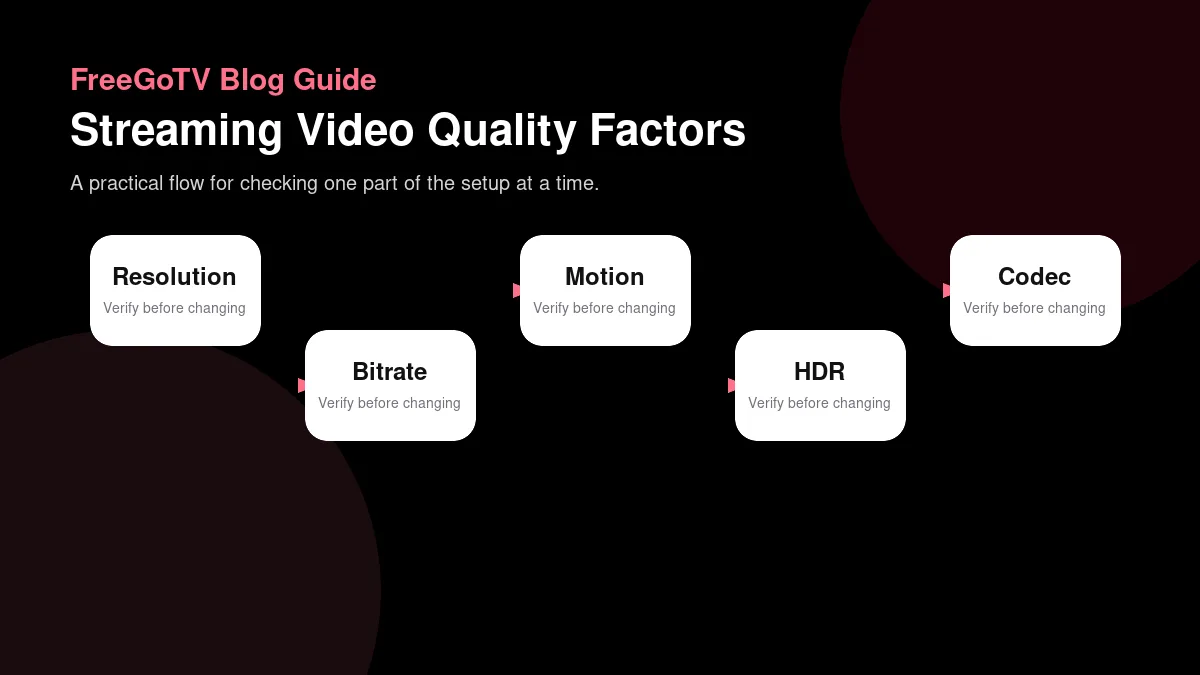
Resolution is only one part of quality
| Concept | Typical use | Bitrate considerations | HDR/codec considerations |
|---|---|---|---|
| Resolution | Defines pixel dimensions such as HD or 4K. | Higher resolution often needs more bitrate, but poor compression can still look soft. | Resolution does not guarantee HDR, color accuracy, or a modern codec. |
| Bitrate | Controls how much data is available to describe the picture over time. | Too little bitrate can cause blockiness, banding, or detail loss during motion. | Efficient codecs may look better at the same bitrate than older codecs. |
| Frame rate and motion | Affects sports, fast camera movement, and smoothness. | Fast motion can reveal compression limits even when static scenes look sharp. | Device and display settings can change how motion is processed. |
| HDR and color | Expands brightness and color when the whole path supports it. | HDR streams can need careful encoding and compatible display settings. | Unsupported HDR may appear washed out or be converted to SDR. |
| Device decoding | Turns the stream into picture and sound on the screen. | A network can be fine while an older device struggles with a format. | Codec support, HDMI path, and TV settings all affect final output. |
Native detail beats labels
Resolution describes pixel dimensions, such as 720p, 1080p, or 4K. It does not describe how much detail survived capture, compression, delivery, and display processing. A clean 1080p stream from a good source can look better than a heavily compressed higher-resolution stream. The label is useful, but it is not the whole quality story.
Upscaling has limits
Native detail matters. If the source was produced at a lower resolution or captured poorly, later scaling cannot recreate information that never existed. Upscaling can make an image fit a 4K screen, but it does not turn a soft source into true native 4K detail. Many televisions perform upscaling automatically, which can make comparisons confusing.
Screen size and viewing distance affect perception. Compression artifacts that are invisible on a small bedroom TV may be obvious on a large living-room display. A household evaluating quality should test on the screen that matters most rather than judging from a phone preview.
When comparing services or devices, use the same display mode and similar content. A bright animation, a dark drama, and a fast sports event stress different parts of the pipeline. Resolution claims should be evaluated alongside real scenes.
Bitrate and compression shape the picture
More bits can help, but efficiency matters
Bitrate describes how much data is used over time. Higher bitrate often gives the encoder more room to preserve detail, especially during motion, but codec efficiency matters too. A modern codec at one bitrate may outperform an older codec at a higher bitrate. The viewer sees the combined result, not the number alone.
Artifacts have recognizable patterns
Compression artifacts often have recognizable patterns: blocky patches, mosquito noise around edges, smeared grass, banding in skies, or loss of texture during fast movement. These artifacts can appear even when the network is fast because they may already exist in the encoded stream. Increasing home internet speed cannot restore detail removed before delivery.
Adaptive bitrate systems may switch quality during playback when conditions change. A temporary drop can make the picture soft before it recovers. If the change happens only over Wi-Fi, the network may be involved. If it happens at the same moment on several devices, the source or delivery path may be involved.
The streaming data usage guide explains the planning side of bitrate. More bits can improve quality, but they also consume more data and require a steadier connection.
Motion, frame rate, and live events
Sports reveal weaknesses quickly
Fast motion is difficult for compression. Sports, news tickers, confetti, rain, crowds, and camera pans can reveal artifacts that a slow interview hides. If sports quality matters, test sports or similar motion rather than only still scenes. A service that looks fine on one program may struggle with another content type.
Live delay is separate from smoothness
Frame rate affects smoothness. A higher frame rate can make motion appear more fluid when the source, stream, device, and display all support it. However, forced motion smoothing on a television can create an artificial look that some viewers dislike. Quality evaluation should include display settings, not just the stream.
Live delay is separate. A stream can be smooth and high quality while still running behind a broadcast, stadium event, or phone alert. Delay comes from capture, encoding, packaging, network delivery, buffering, and playback. Reducing delay may require smaller buffers, which can increase interruption risk.
When testing live quality, observe three things separately: visual detail, motion smoothness, and delay. Combining them into one complaint makes troubleshooting harder because each may have a different cause.
HDR, color, and display settings
HDR requires the whole path
HDR can expand brightness and color when the source, stream, device, cable, HDMI port, and display all support the same standard. If one link fails, the result may fall back to standard dynamic range or look washed out. HDR support is a chain, not a logo printed on one box.
Bad settings can mimic bad streaming
Color problems can come from television picture modes, incorrect HDMI range, device output settings, or source grading. A vivid store-display mode may make compression and skin tones look worse at home. Use a reasonable picture mode and compare with another known-good app before blaming the streaming service.
Dark scenes reveal banding and crushed blacks. Bright sports reveal motion artifacts. Animation reveals edge noise and color banding. Use several content types when evaluating. One scene cannot represent the entire service experience.
If HDR matters, confirm both device compatibility and app support. The device compatibility guide explains why app availability and hardware capability must both be checked before buying equipment.
Codecs and device decoding
Support can be hardware or software
A codec is the method used to compress and decompress media. Common video codecs include H.264, HEVC, VP9, and AV1 in various contexts. Device support may be hardware-accelerated, software-based, or absent. Hardware decoding is generally more efficient and reliable for television devices.
Audio formats matter too
If a device lacks efficient codec support, playback may fail, stutter, overheat, drain battery, or fall back to a lower-quality stream. This is why an older device can struggle even when the internet connection is fast. The bottleneck is local decoding, not bandwidth.
Audio codecs matter as well. A video can appear while audio is silent if the output path cannot handle the selected audio format. Try stereo output as a diagnostic step, then reintroduce surround settings after identifying the issue.
Do not assume that installing a different player bypasses every hardware limitation. Some players can use alternate decoding paths, but they still depend on the device's operating system, processor, and media APIs. Compatibility documentation is more reliable than guesswork.
A practical quality evaluation routine
Use controlled comparisons
Start with a clean setup: updated app, stable network, known display mode, and one device. Watch a mix of slow scenes, fast motion, dark scenes, and text-heavy content. Note whether problems are constant or scene-specific. A problem that appears only during fast motion suggests compression or frame-rate stress, while constant softness may point elsewhere.
Record visible defects clearly
Compare wired and Wi-Fi if possible. If quality drops only on Wi-Fi, adaptive bitrate may be responding to inconsistent delivery. If quality remains poor on a strong wired connection, look at source, app settings, device decoding, or display configuration. Controlled comparisons prevent you from treating every visible flaw as a bandwidth problem.
Use plain descriptions: blocky grass during sports, banding in dark gradients, audio ahead by half a second, captions delayed, image soft after five minutes, HDR washed out. Specific descriptions are easier to troubleshoot than 'bad quality.' Add device model, app version, and time.
Finally, decide whether the quality meets your actual viewing needs. Not every secondary screen needs premium quality, but the main screen should satisfy the people who use it most. Evaluation is about fit, not chasing labels.
Separate source quality from home settings
Compare with known-good material
Before blaming a service for every visual flaw, compare the television with known-good material from another legitimate app or source. If every source looks oversharpened, washed out, or too dark, the display settings may be responsible. If only one stream has artifacts, the source, encoding, or delivery path becomes more likely.
Use the same HDMI input and picture mode when comparing. Televisions often store separate settings per input or app. A streaming box connected to one HDMI port may use different processing than a built-in app. Without matching settings, comparisons can become unfair.
Avoid over-processing while testing
Motion smoothing, noise reduction, dynamic contrast, and edge enhancement can hide or exaggerate streaming artifacts. For evaluation, choose a balanced picture mode and disable extreme processing if you know how to restore it. The goal is not professional calibration; it is avoiding settings that create misleading symptoms.
After testing, adjust to personal taste. Some viewers prefer extra brightness or smoothing. That is fine as long as you do not confuse a chosen display effect with the underlying stream quality.
Document quality issues for support
A useful quality report names the visible defect, content type, device, app version, connection type, display path, and time. For example: fast sports motion becomes blocky on living-room Apple TV over Ethernet, while menus and audio remain stable. That report points toward media quality rather than Wi-Fi.
Photos of a television can be misleading because cameras add exposure, focus, and compression. If you send an image, describe the defect in words too. A support team can act on a precise description even when a phone photo fails to capture what your eyes saw.
If quality varies by channel, list examples of good and bad streams. Differences across channels suggest source or encoding variation. Uniform poor quality across all streams suggests settings, network adaptation, app configuration, or device limits.
Picture quality review worksheet
Record quality evidence before changing settings
Use a short worksheet before making changes or contacting support. For picture-quality evaluation, write the device, app name, app version, network path, time of day, and the exact result you observed. Then add what you expected to happen and why. This turns a vague impression into evidence that another person can understand without standing in your living room.
For picture quality, describe what you see before naming a cause. Blocky motion, soft detail, banding in dark scenes, washed-out color, audio delay, and dropped frames point to different parts of the chain. A worksheet that starts with the visible defect helps avoid blaming resolution when bitrate, HDR handling, display settings, or decoding may be involved.
Use content-specific comparisons. Sports motion, dark films, bright studio news, and scrolling text stress different parts of the video path. If only fast action looks poor, the problem is not the same as a universally soft interface. If menus are sharp but video is muddy, focus on stream quality, adaptation, or source encoding rather than television sharpness controls.
Test the display path one link at a time. Record the streaming device, HDMI port, display mode, HDR setting, audio device, and normal viewing distance. Then change only one item, such as app quality mode or HDMI input, before judging improvement. Quality troubleshooting becomes unreliable when the source, device, cable, and television preset all change together.
Share quality notes without account details
A quality report can stay privacy-safe while still being specific. Share device model, app version, display model, connection type, visible defect, example content type, and local time. Avoid sending account screens, full stream URLs, activation codes, or photos that reveal private household information around the television. The visual symptom matters more than the credential context.
When escalating quality concerns, include one good example and one bad example if you have them. Say whether both were watched on the same screen, app, and network path. A contrast between two streams on identical equipment points toward source or encoding differences; a contrast between two devices points toward hardware, app, or display configuration.
After quality improves, document the viewing baseline rather than every experiment. Keep the display mode, app setting, connection path, and content type that produced acceptable results. If a later update changes the picture, you can compare against the baseline and decide whether the issue is a new source problem, a changed app setting, or a display adjustment that drifted.
Finally, connect this worksheet to the rest of your streaming decision. Quality notes should show the visible defect, source comparison, display path, connection type, and whether the issue changes by channel or scene. If you need broader context, use the compatibility, data-usage, and buffering guides. The best streaming setup is not the one with the most undocumented tweaks; it is the one whose requirements, limits, and recovery steps are understood by the people who use it.
Check the full picture path before blaming resolution
For quality decisions, make one final pass using content that represents your real viewing. If the household mainly watches sports, judge motion and field texture. If it watches films, judge dark scenes, color, and audio sync. If it watches news, judge text clarity and channel startup. A beautiful demo clip does not prove the experience that matters to you. Record whether flaws are visible from the normal seating distance, not inches from the screen. The practical question is whether the picture is satisfying in normal use, with normal equipment, at normal hours. That standard is more honest than chasing labels alone.
Confirm whether the display path limits quality
When evaluating upgrades, change one part of the path at a time. A new streaming box, new HDMI cable, new television picture mode, and new router installed on the same day may improve the experience, but you will not know which change mattered. Start with the cheapest reversible test: settings, cable path, app update, wired comparison, or display mode. Spend money only after evidence points to the device, network, or display as the likely constraint.
If a defect is visible only in one scene, replay the same moment after restarting the app and after changing nothing else. A repeatable flaw points toward source, encoding, or display handling. A random flaw points more toward delivery variation or device load.
Use that repeat test before replacing equipment, because it can save money and preserve a setup that already works well enough.
Use a repeatable quality check
Quality complaints are easier to evaluate when the scene and settings are repeatable. Choose one familiar program or channel, watch the same type of motion, and note the device, display mode, network path, and time of day. Then change one factor at a time. If switching from Wi-Fi to Ethernet improves stability but not sharpness, the remaining issue may be source quality, encoding, device decoding, or TV processing rather than raw bandwidth.
Avoid judging quality from a single label such as HD, 4K, or HDR. Those labels describe only part of the path. A useful report says what you saw: softness during motion, blocky shadows, washed-out HDR, audio sync drift, or captions that lag. Specific observations make it possible to separate service behavior from local display settings.
FAQ
Is 4K always better than 1080p?
Is 4K always better than 1080p? No. Native source quality, bitrate, compression, HDR handling, and display processing can make a lower-resolution stream look better than a poorly encoded higher-resolution one.
Will faster internet improve picture quality?
Will faster internet improve picture quality? It can help if the current connection forces lower adaptive quality or buffering. It will not restore detail removed during encoding or fix an unsupported codec, bad display setting, or weak source.
Why does quality change during playback?
Why does quality change during playback? Adaptive streaming may switch bitrates as network conditions change. App behavior, Wi-Fi instability, source changes, and device performance can also affect perceived quality. Record when changes happen and test one variable at a time.
Conclusion: judge the whole video chain
Evaluate the whole path
Streaming video quality is the product of an entire path: source, encoding, delivery, player, device, cable, display, and settings. Resolution is visible in marketing, but bitrate, compression, motion, HDR, codecs, and household setup often explain what viewers actually see.
Your next step is to run a controlled quality check on your main screen with representative content and a stable connection. Keep FreeGoTV for verified site navigation, then use the data-usage and compatibility guides to connect picture quality with bandwidth and hardware decisions.