An electronic program guide looks simple when it works: channel names on the left, times across the screen, and program titles in neat boxes. When it fails, the symptoms are confusing. A channel can play while the guide is empty. A guide can list programs while the stream will not open. A show can appear one hour early because a time zone was interpreted incorrectly.
This guide explains how EPG data, channel mapping, schedules, time zones, and playback relate to one another. It is written for US viewers who want practical understanding before contacting support. It does not claim that every channel has complete data or that any provider can repair every third-party listing. For verified site navigation, use FreeGoTV and the public channels page.
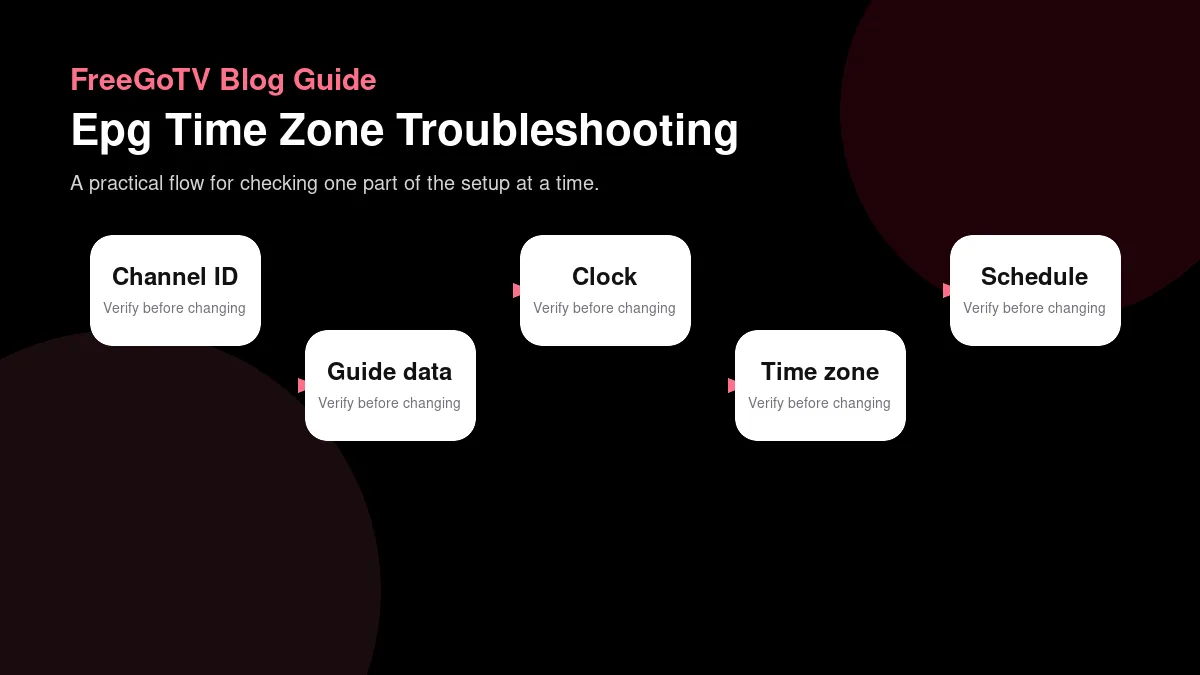
What an electronic program guide does
The guide is data, not the video
An electronic program guide is a structured schedule. It usually connects a channel identifier with program titles, start times, end times, descriptions, genres, ratings, images, and sometimes episode information. The guide helps the player display what is on now and what is coming next, but the guide is not the video stream itself.
Program titles require mapping
Because guide data is separate, playback and scheduling can fail independently. A channel may stream normally while its schedule is blank. Another entry may show a full schedule even though the account cannot access the video. Treat the guide as a companion system that improves navigation, not as proof that a stream is available or authorized.
Mapping is the bridge between a channel entry and the schedule that should appear beside it. If the player receives the wrong identifier, the wrong schedule can appear. If the identifier is missing, the guide may show no data even when the channel name looks familiar. Display names alone are often insufficient because several channels can share similar names across regions.
A useful troubleshooting report names the channel, the displayed guide title, the expected program if known, the time zone, and whether the video itself plays. That information gives support more to work with than the sentence 'the EPG is broken.'
Understand channel identity and regional context
Similar names can point to different feeds
Guide problems often begin with channel identity. A familiar network may have national, regional, local, HD, SD, plus-one, event, or language-specific feeds. Those feeds can carry different schedules even when their logos look similar. Selecting the wrong feed can make the guide appear offset or entirely unrelated.
A country label is not a rights guarantee
A country label can help organize a list, but it does not prove that every program is available in that country, that the feed matches a local cable lineup, or that the provider has rights to distribute every event. Labels are navigation aids. Availability, authorization, and schedule accuracy need separate confirmation.
When checking a channel list, compare names carefully. Is the entry a general network, a local affiliate, an international feed, or a sports overflow channel? The FreeGoTV channel list is presented as a sample explorer rather than a verified complete lineup, so do not treat category labels as contractual availability.
If a household cares about specific local programming, the guide check should include the exact market and expected show time. A national schedule may not answer a local-affiliate question. Document the requirement before subscribing so a trial can test the channel that actually matters.
Time zones and clock settings
| Symptom | Possible cause | What to check |
|---|---|---|
| Video plays but guide is empty | Guide feed, app refresh, or channel mapping issue. | Refresh guide data, check app time settings, and compare another channel category. |
| Programs appear at the wrong hour | Device clock, time zone, daylight saving handling, or XMLTV offset. | Check automatic time, time zone, and whether the app has its own offset setting. |
| Wrong program on one channel | Channel identity or regional schedule mismatch. | Record channel name, displayed program, expected program, time, and region. |
| Guide works on one device only | App cache, player support, or device-specific guide handling. | Compare app version, guide refresh options, and clock settings across devices. |
| Guide titles are too vague | Limited metadata depth rather than playback failure. | Check whether the issue is missing schedule data or simply short descriptions. |
The clock can be right while the guide is wrong
Time-zone errors are among the most common guide complaints. A schedule may be stored in UTC, local station time, provider time, or another convention, then converted by the app. If one piece interprets the time incorrectly, programs can appear one or more hours early or late even when the device clock is correct.
Offsets differ from live delay
Check the device time zone, app time-zone setting if one exists, daylight saving behavior, and the region selected in the app store or account. Do not assume the television clock is the only source of truth. External players, mobile apps, and web portals may each apply their own settings.
A time-zone offset is not the same as streaming delay. If a live event appears thirty seconds behind a phone notification, that is ordinary delivery latency. If the guide says a program starts at 8 p.m. but the listed program is from 7 p.m., that is a schedule offset. The fixes and expectations differ.
When reporting time problems, use absolute local time. Say 'At 8:15 p.m. Eastern on September 23, the guide showed the 7 p.m. program' rather than 'the guide is late.' Precise examples let support compare the schedule source with the displayed result.
Why guide data goes missing
Blank does not always mean broken playback
A blank guide can result from missing schedule data, a failed guide refresh, incorrect mapping, unsupported app behavior, or temporary delivery issues. It can also happen when a channel was added to a list before schedule metadata was available. The stream may still play because video access and schedule display are separate.
Partial data is a clue
Partial data is useful evidence. If some categories have complete schedules and others are empty, the account, internet connection, and basic app function probably work. The problem may be limited to a source, region, or mapping group. If every guide entry is empty across devices, the app refresh path or guide source deserves attention.
Try a documented refresh if the app offers one. Avoid deleting the entire app immediately unless the instructions recommend it. A refresh preserves sign-in details and tests the schedule path directly. If refresh fails, note the error and time. Reinstalling without notes may make the problem harder to reproduce.
If guide data appears on one device but not another, compare app versions, time-zone settings, cache state, and whether the same account was used. That comparison often distinguishes provider data from local app display behavior.
Build a guide check workflow
Choose representative channels
A practical guide check uses a small set of representative channels instead of scrolling endlessly. Pick one news channel, one sports or event channel, one entertainment channel, and one local or regional channel if that matters. Confirm whether each shows current and upcoming programs, then compare the displayed times with a trusted independent schedule when appropriate.
Test after realistic updates
Let the app complete its normal loading process. Some guides populate gradually, especially after a fresh install. If you open the guide immediately after sign-in and declare it empty after five seconds, you may mistake loading delay for missing data. Wait long enough to observe whether entries appear, then record the result.
Test again after restarting the app. A schedule that appears only after restart may point to a refresh issue. A schedule that disappears only after channel hopping may suggest app memory or cache behavior. These distinctions are valuable because they identify the condition that triggers failure.
Keep your expectations tied to documented features. If a provider or app does not promise fourteen days of guide data, do not treat a shorter schedule as an outage. Ask what guide depth is expected, and evaluate against that answer rather than against another service's interface.
Distinguish guide depth from guide accuracy
A short guide window can be normal
Guide depth means how far into the future schedules are displayed. One app may show only current and next programs, another may show several days, and another may load longer schedules after a refresh. A short guide window is not automatically an error unless the provider or app documents a longer one. Ask what depth is expected before treating the limitation as a failure.
Guide accuracy is different. Accuracy asks whether the listed program matches the channel and time. A guide can have a long future window while being mapped to the wrong feed. It can also have a short window that is accurate for what it shows. Separate these observations in your notes.
Images and descriptions are optional layers
Program artwork, episode descriptions, ratings, and genre labels may come from metadata sources beyond the basic schedule. Missing artwork does not necessarily mean the program time is wrong. A player may display a correct title with no image, or an image cache may update later. Troubleshoot core schedule accuracy before focusing on decorative metadata.
If parental ratings or descriptions matter for household decisions, test those fields deliberately. Do not assume every channel supplies them equally. A guide can be usable for navigation while still lacking the detail a family expects for content filtering.
Compare guide behavior across devices
When the same account is allowed on more than one device, comparing guide behavior can identify the layer at fault. If one device shows schedules and another does not, the guide source probably exists and the local app, cache, settings, or version deserves attention. If no device shows data for the same channel, source data or mapping becomes more likely.
Keep comparisons fair. Use the same channel, same local time, same account, and updated app versions. If one device is configured for a different region or time zone, adjust that before concluding that the guide source differs.
Some apps store guide data locally and refresh on their own schedule. After changing a setting, allow time for the guide to reload. Immediately switching devices, clearing cache, and reinstalling can hide the cause you were trying to find.
Use EPG reports to improve support
A strong EPG report contains the channel name as displayed, the expected channel if different, local time, time zone, device model, app version, whether video plays, and one example of the wrong or missing program. That format lets support compare mapping, schedule source, and player display without guessing.
Avoid sending only a photograph of a blank guide. The picture may show the symptom, but it usually omits the time zone, app version, and whether playback works. Add those details in text so the image becomes supporting evidence rather than the entire report.
EPG evidence to record
Write the schedule mismatch clearly
Use a short worksheet before making changes or contacting support. For EPG troubleshooting, write the device, app name, app version, network path, time of day, and the exact result you observed. Then add what you expected to happen and why. This turns a vague impression into evidence that another person can understand without standing in your living room.
For guide issues, separate three things that often get blended together: the channel entry, the schedule metadata, and the video stream. A useful note says whether the channel opens, what the guide claims is on, and what you expected at that local time. This prevents a schedule mismatch from being treated as a playback outage or an account problem.
Use neighboring entries as comparisons. Check whether adjacent channels have guide data, whether one category is blank while another is complete, and whether the same schedule appears offset by exactly one hour. Patterns like those point toward mapping, time zone, or source-data behavior more clearly than a broad statement that the guide is wrong.
Test refresh behavior deliberately. Close and reopen the app, note whether the guide reloads, and avoid repeatedly clearing data unless support or documentation recommends it. If the guide fills in after a restart, the issue may be cache or synchronization timing. If it stays blank while video works, the evidence points more toward missing or unmatched schedule data.
Keep guide reports privacy-safe
A privacy-safe guide report should show channel names, visible program titles, local time, app version, and device model. It should not include full account pages, login fields, activation links, or private viewing history beyond the specific guide entry you are reporting. Cropping a guide screenshot to the affected row is usually enough context.
When contacting support, send one or two representative examples rather than a long channel dump. A good report names the channel label, the expected program, the displayed program or blank state, the time zone, and whether playback opens. That gives the provider enough structure to investigate guide mapping without sorting through unrelated device experiments.
Once the guide behaves normally, keep the verified settings that mattered: device clock, app time zone, selected region if applicable, and the refresh step that restored data. Those details are worth more than a list of guesses. They also help you recognize whether a later guide issue is new or simply the same time-zone or cache problem returning.
Finally, connect this worksheet to the rest of your streaming decision. Guide notes should show the channel, displayed program, expected program, time zone, and whether the video itself plays. If you need broader context, use the channel page, FAQ, and streaming-error troubleshooting article. The best streaming setup is not the one with the most undocumented tweaks; it is the one whose requirements, limits, and recovery steps are understood by the people who use it.
Check clocks and channel identity before reporting
For EPG work, add a small final checklist to your notes: device clock, app time zone, channel display name, expected regional feed, visible program title, and whether the video opens. Then test the same channel after a normal app restart. If the schedule changes, timing or refresh behavior may be involved. If the schedule remains wrong, mapping or source data is more likely. This checklist keeps support focused on guide evidence instead of replaying general network troubleshooting. It also helps you decide whether the issue affects everyday viewing or only a cosmetic part of the interface. A guide problem on one rarely watched channel may be tolerable, while a one-hour offset on a primary sports or news channel may be a subscription decision factor. Treat the guide as part of usability, not merely decoration.
Separate guide errors from content expectations
Not every disappointing guide result is the same kind of problem. A missing program title, a wrong time, a vague description, and an expected channel that is not listed all require different checks. Before reporting the issue, write down what the guide currently shows, what you expected it to show, and why you expected that result. That small distinction helps support decide whether the problem is data freshness, channel identity, regional schedule mapping, or a misunderstanding about available programming.
For time-zone issues, include the device time zone and whether automatic time is enabled. For channel identity issues, include the exact channel label as displayed by the app. For missing depth, such as limited episode descriptions, ask whether richer metadata is expected before assuming playback is broken. Guide quality improves fastest when reports describe the guide symptom instead of only saying the service is wrong.
FAQ
Why does video play when the guide is blank?
Why does video play when the guide is blank? Because the video stream and schedule metadata are separate. The app may have enough information to open the stream while lacking a matched schedule entry. Report both facts: playback works, guide is blank, and identify the affected channel.
Why is my guide off by one hour?
Why is my guide off by one hour? Daylight saving time, device region, app time zone, or schedule-source conversion may be involved. Check settings first, then provide a dated example with local time. One-hour offsets are often configuration or mapping problems rather than network speed issues.
Can guide data prove a channel is available?
Can guide data prove a channel is available? No. A guide listing is evidence that schedule data exists, not proof that your account can access the stream or that a future event will be distributed. Verify access through actual playback and provider terms.
Conclusion: treat guide data as its own system
Make guide reports specific
Electronic program guides are helpful because they turn a list of streams into a usable viewing experience. They are also easy to misunderstand because their data, mapping, time conversion, and video access are separate systems. Once you separate those layers, guide problems become easier to describe and easier to troubleshoot.
Your next step is to choose three representative channels, check playback and schedule data separately, and record any mismatch with local time and device details. Use FreeGoTV, the FAQ, and the related troubleshooting guide when you need to connect guide symptoms with broader app behavior.